

A Samsung Galaxy A55 screen problem may appear as cracked glass, coloured lines, dark patches, flickering, missing touch or taps that occur without the user. Someone searching for Samsung A55 screen repair Putrajaya needs more than a generic screen-replacement page: the useful first question is what changed in the glass, image, touch and nearby functions.
This article uses a before-and-after display record. It helps you describe the damage safely, reduce accidental input and prepare an inspection without claiming that every A55 screen symptom has the same cause or service requirement.

Quick outline: record what changed on the A55
- Confirm the full Samsung Galaxy A55 model description.
- Describe glass, image and touch separately.
- Check nearby functions without stressing the damaged area.
- Record impact, pressure, liquid, heat or earlier repair.
- Protect data from unpredictable touch input.
Confirm the exact device before discussing a screen
Use the device Settings, box or purchase record to confirm that the phone is a Galaxy A55 and to note the storage variant. Do not publish an IMEI, serial number, password or private account detail. A model name helps organise the enquiry, but it does not confirm part compatibility, stock, price or the final repair route.
Remove an ordinary detachable case only if the phone is safe to handle. Do not peel a firmly attached protector from shattered glass or press a raised display back into the frame. Photograph the front and side from a safe angle when a crack, gap or bend is visible.
Build a four-layer screen description
1. Outer glass
Note whether the surface has a hairline crack, missing fragment, sharp edge or impact point. The location matters: a corner strike, centre pressure mark and long edge crack create different physical records. Cover exposed sharp edges loosely for transport without pressing adhesive into the damaged area.
2. Displayed image
Describe what the panel shows: normal picture, line, tint, flicker, ink-like patch, partial black area or no image. If the phone remains stable, take a screenshot and view it on another device. A mark that appears in the screenshot differs from one visible only on the physical display, although neither result identifies a failed component by itself.
3. Touch input
Say whether touch is fully responsive, missing in one zone, delayed or registering by itself. Do not repeatedly unlock a phone with unpredictable touch because unintended taps may enter passcodes, place calls or change settings. Use a safe power-off method when possible and avoid testing over sharp or lifting glass.
4. Functions near the display
Record whether the front camera image, earpiece, proximity behaviour, brightness response and side buttons changed after the same event. These observations help preserve the event timeline. They should not be used to declare that all nearby parts require service.
Match the symptom to the event history
After a drop or pressure
Write where the impact landed, whether a case was fitted and which symptom appeared first. Do not twist the frame or press the panel to see if a line or flicker changes. A growing gap, loose fragment or sharp edge needs cautious handling.
After liquid exposure
Turn the phone off when it is safe, do not charge it and do not apply heat. Record the type of exposure, approximate time and whether the screen changed immediately or later. Rice, hair dryers and repeated charging do not provide a reliable assessment.
After an update or app change
Note whether the behaviour appears on the lock screen, in every app or only in one app. A single-app problem and a display-wide problem belong to different branches of the intake. Avoid a factory reset before you have backed up important information and recorded the original symptom.
After a previous screen service
State when the earlier work occurred and which behaviour is new. Do not remove the screen or open the phone to inspect connectors. The existing service record may be relevant, but the current condition still needs a fresh assessment.
Examples of useful A55 screen notes
Example one: “Image is normal, but touch misses the lower-right area after a corner drop.” This separates image from input. Example two: “A vertical line is always visible, touch works, and the line is absent from a screenshot viewed elsewhere.” This records an observation without naming a part. Example three: “The phone rings and vibrates, but the display remains black after pressure in a bag.” This distinguishes device activity from visible output.
Prepare for an MRFIX Putrajaya screen inspection
Back up important data only if the phone is stable and touch input can be trusted. Note the lock status and keep passwords out of the booking form. Bring the case or accessory only when it is relevant to the event. Stop using the phone if the frame is bent, the display is lifting, the battery appears swollen, or the device smells unusual or becomes excessively hot.
For the wider screen-service process, read what happens during a Putrajaya phone-screen inspection. If the whole phone appears inactive, compare the phone-not-working diagnosis guide rather than assuming a black screen is the only fault.
WhatsApp your Galaxy A55 screen symptoms
Book a Samsung A55 screen assessment
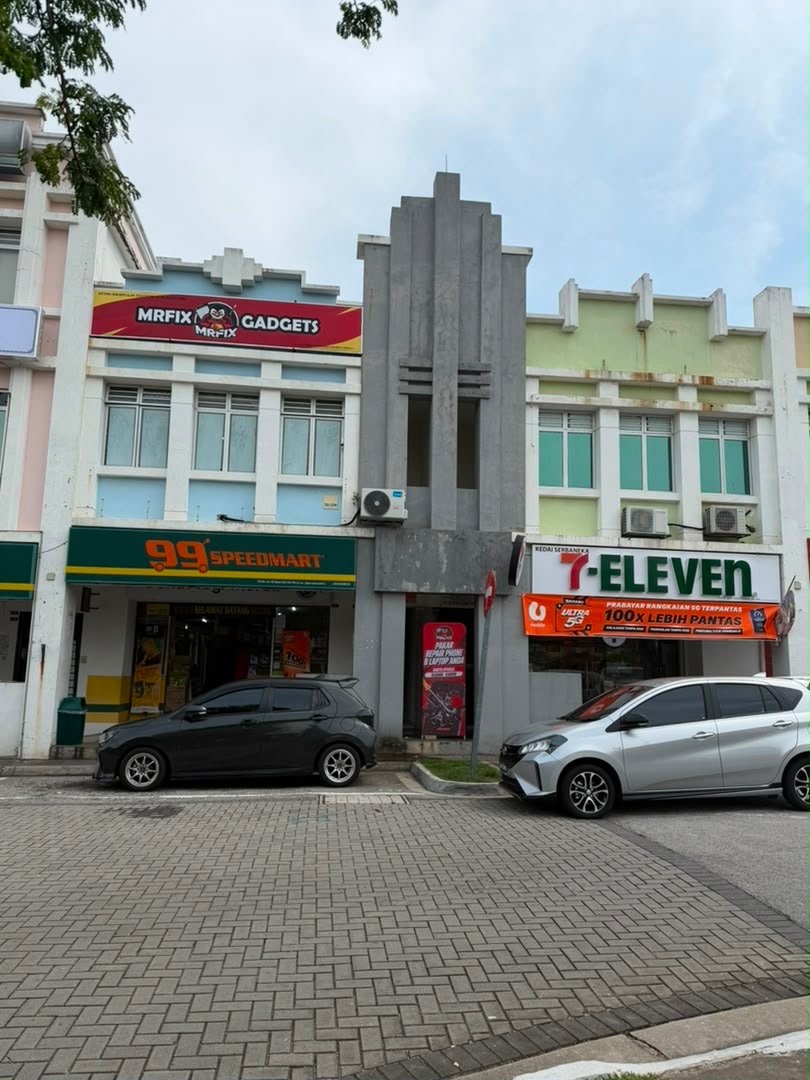
Visit MRFIX Putrajaya at A-6A, 1st Floor, Blok A, Jalan Seluang P8/7, Presint 8, 62250 Putrajaya. Call 019-910 0531 or send the model, visible symptom, event history and preferred date below. Inspection must come before a service decision; no price, repair time, component availability or result is promised here.
Samsung A55 screen repair FAQ
Does cracked glass always mean the image panel has failed?
No. Glass condition, displayed image and touch input should be recorded separately before the service route is discussed.
Should I keep testing ghost touch?
No. Unpredictable input can trigger unwanted actions. Power down safely when possible and report when and where the taps occur.
Can a screenshot diagnose the screen?
No. It is one comparison that may separate captured content from a physical mark, but inspection is still required.